
Import
and Use of your Controlled Vocabulary Keyword Catalog
with Expression Media & Media Pro (formerly iView MediaPro)
Installation of your
Keyword Catalog
Keywording with Expression Media
Unlocking "Locked" Catalogs
Other Resources
Note for Windows Users: If you are having problems with importing images on Windows machines, be aware that there is a known conflict with versions of QuickTime (version 7+) that causes problems. To prevent this from happening you will have to make an adjustment within the preferences of the regular QuickTime Player (you will not find them in the QT picture viewer). Open the QuickTime Preferences (under the Edit menu) and then locate the "QuickTime Preferences." In the resulting dialog, choose the Advanced tab (at far right), and flip down to the Video mode and check "Safe mode (GDI only) and then click on the OK button.(note, older QT versions, such as v 6.5 don't have these options). After making this change iView / Expression Media should import images properly.
Installing the Keyword Catalog Files
[please note] If you wish to retain any of the existing files from previous annotation sessions, do note that the instructions given below will replace your existing data for the Keywords, IPTC Subject codes, IPTC Scene, and IPTC Intellectual Genre fields. You may wish to make copies of all of these files within your Vocabulary folder before proceeding with these instructions.
What is the Controlled Vocabulary Keyword Catalog or CVKC? If you are not familiar with this useful tool, you might want to first visit the product page for information regarding the iView Media Pro / Microsoft Expression Media Version of the CVKC.
If you have other questions of a general nature, please check the CVKC-FAQ.
Installation of your Controlled Vocabulary Keyword Catalog
Start by locating your cvkcv3_0-IVMP3 download file and extracting it to reveal a folder named cvkcv3_0-IVMP3. (See the UnZipping page if you are not familar with how to open or extract a Zip file)
Inside of that folder should be several plain text files with the following names:
Intellectual Genre.txt, IPTC Scene.txt, IPTC Subject codes.txt, and Keywords.txt
New-User Method
If you are new to Media Pro, Expression Media (or iView Media pro), the following
method takes a few steps more than the "Advanced" one, but is fairly foolproof.
First launch Media Pro, Expression Media (or iView Media Pro).
Open the Preferences for the Vocabulary Editor.
Windows: Select the Edit menu, then choose Preferences >> Vocabulary
Editor
Mac: Select the iView Media Pro, Expression
Media, or Media Pro menu (next to
the Apple in upper left hand corner), then choose Preferences >> Vocabulary
Editor
Advanced Method
It is possible to copy or move those four files to
the following folder (note: the location of the Expression Media
or Media Pro folder must be substituted for iView if you
are using
these
newer versions) however if you have a folder other than the default in use,
the CVKC files may not appear within Expression Media (or iView Media Pro).
In many Windows systems, the actual folders are hidden from view. If that
is the case, use the second method outlined below.
Mac file location
{user} : Library : Application Support : iView : Plug-ins : Vocabulary
: Default
Windows Location
C:\Documents and Settings\Administrator\Application Data\iView\Plug-ins\Vocabulary\Default
(substitute your drive letter if not using C:)
Windows Location (Vista)
C:\Users\Administrator\AppData\Roaming\iView\Plug-ins\Vocabulary\Default
Windows Location (Windows 7 or later)
C:\Users\{named user or Administrator}\AppData\Roaming\Phase One Media Pro\Plug-ins\Vocabulary\Default
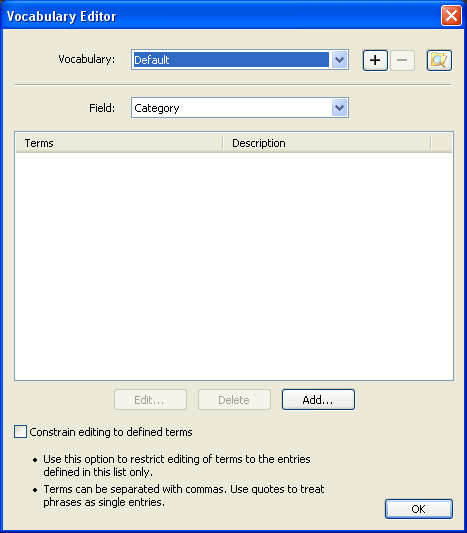
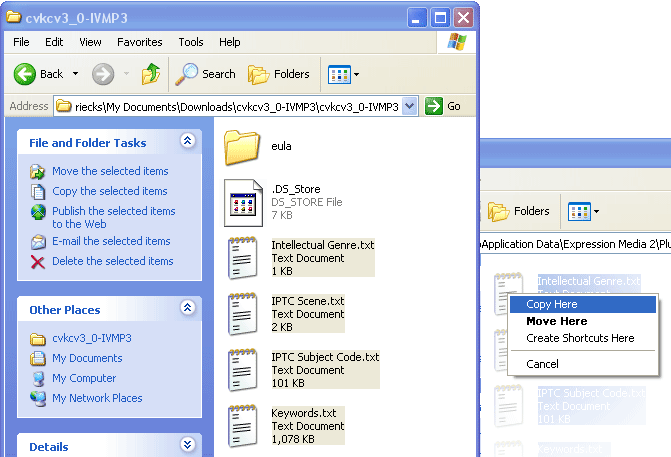
In the upper right hand corner of the resulting dialogue is a button that looks like a magnifying glass over a folder. Clicking on that icon will open the Vocabulary folder using the Mac Finder, or Windows Explorer and will typically show a single folder that says "Default." Open that folder, and copy the following four text files into this folder.
Intellectual Genre.txt
IPTC Scene.txt
IPTC Subject codes.txt
Keywords.txt
Then go to your Preferences >> Vocabulary Editor section.
(shortcut is option command comma on Mac)
(shortcut is control+alt+comma on Windows)
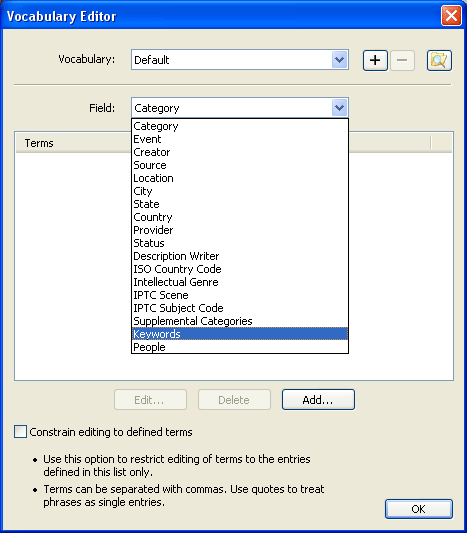
Use the pull down field labeled Vocabulary: to insure that the Default folder is selected. Then use the pull-down arrow next to the Field: label in order to select the Keywords option.
As soon as you do this, you should see an entry that includes _cvkc appear in the Terms column as below, followed by a copyright notice, date, and terms including Action, Activity and much more.
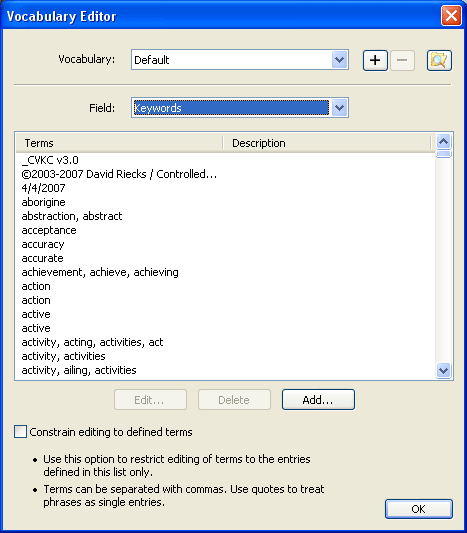
If you are seeing this information, then the Controlled Vocabulary Keyword Catalog has been successfully loaded. Make sure that the checkbox next to Constrain editing to defined terms is unchecked. Click on the OK button in lower right to finsh, and you can begin keywording.
You can also view the contents of the three IPTC specific files as well, simply use the Field: pull-down feature to move between the three files.
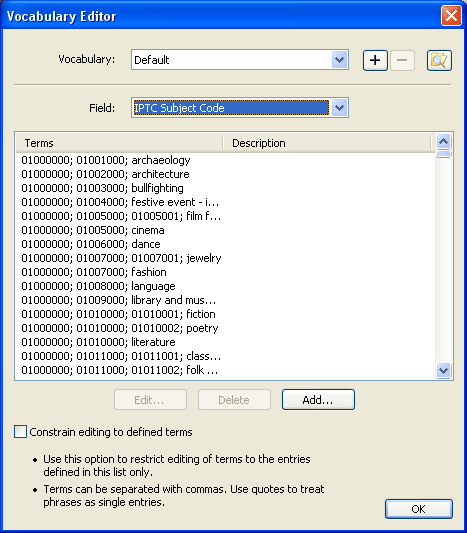
Keywording with iView's Vocabulary editor
Make sure that the Info panel is active. Select the image or images that you wish to keyword. Scroll down or locate the Keyword field in the Info panel.
Double click in that keyword field, and then select the downward pointing arrow at the right edge. The same list of words you saw when you installed the CVKCv3 data set should appear.
Begin typing the name of the term you wish to use as a keyword. For this example, try typing cat and you'll see the list of terms narrow down immediately. If you don't want "Categories" but instead simply want the cat of the feline persuasion, simply scroll till you find that, or try adding a comma, since the word "cat" is part of a comma-separated list of terms.
When you find the string that contains the set of terms you are after, you can use the cursor keys to arrow down to that specific string, and then use the Return key to parse the string of comma separated terms into their component keywords.
As there is nothing to be found in the help file (including the old iView User manuals) on dealing with Locked catalogs, the following instructions should get you back to work with a minimum of effort.
There may be some time in the future where you notice that the size of a catalog file has appeared to mysteriously double in size. In addition, when you open the file you see a dialogue such as the one below, noting that the chosen file "is locked for editing" and further notes that you can -- Open 'Read Only' to review the catalog. Use Save As to make changes.
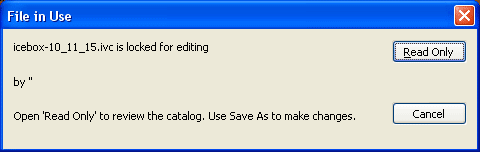
You have to click on the Read Only button to open the catalog. as choosing the "cancel" button simply opens a blank catalog.
In order to auto-save the catalog normally, or to be able to use the Command/Control + Shift + S under the File menu, start by making a change to the catalog so that this normal Save function is no longer grayed out. One easy way is to pick any image, make a change to one of the metadata fields and commit the change (click on the green check, or click to a different image). Assuming this is something you don't want to have saved permanently in the catalog record, remove the change and resave this info to the entry by clicking on the green check mark a second time (there is no need to synch with the original file unless you do wish to keep the change).
Then use the File >> Save As, or Command/Control + Shift + S to save the catalog file. When you do, you'll see a new dialog which states, "This catalog is locked. Click Save to unlock and update the catalog. If this catalog is shared with another user, click Save As... to make a new copy."
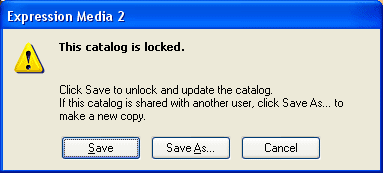
By clicking on the Save button you will be able to do a regular "Save" in the future (and the file size will shrink back down to it's "normal" size). If you have the catalog on a network and another user might possibly have the same catalog open, then you may have to use the Save As.. button and this will require that you save the file to a different location, or give the file a slightly different name.